Please use the built-in help function to familiarize yourself with all the program's features.
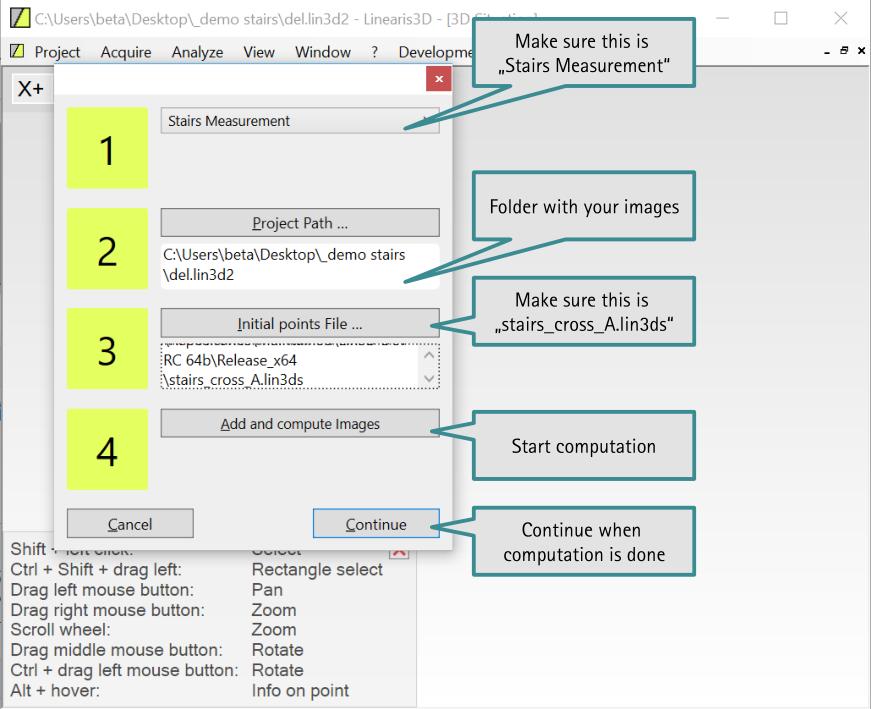
This section applies only to the Windows app. You can take the following steps to repair an incomplete project.
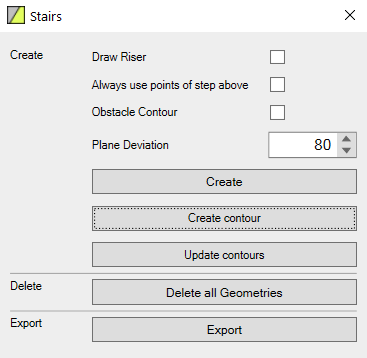
This parameter describes how uneven a step or landing may be. The value represents the maximum vertical distance that a marker may have from the “ideal” level plane or step. For most modern stairs, the default value is suitable. If steps or landings are worn, uneven, etc., it may be helpful to increase the parameter. If the parameter is set too high, it is possible that markers will be assigned to the wrong steps.
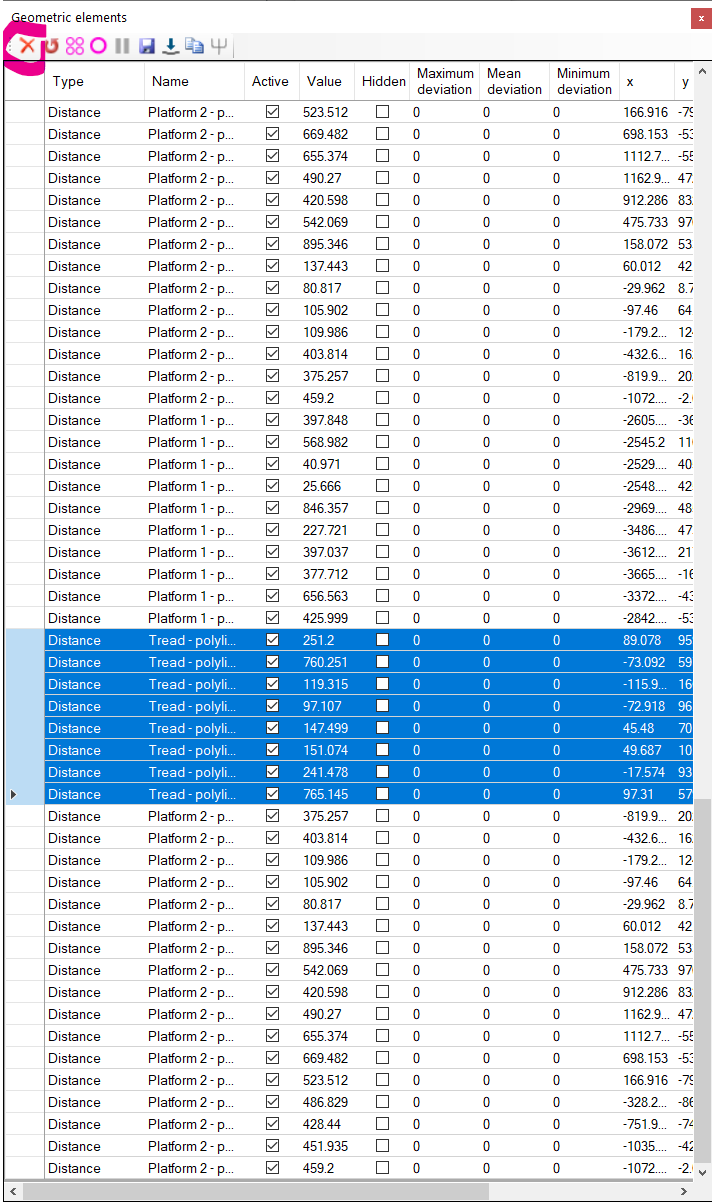
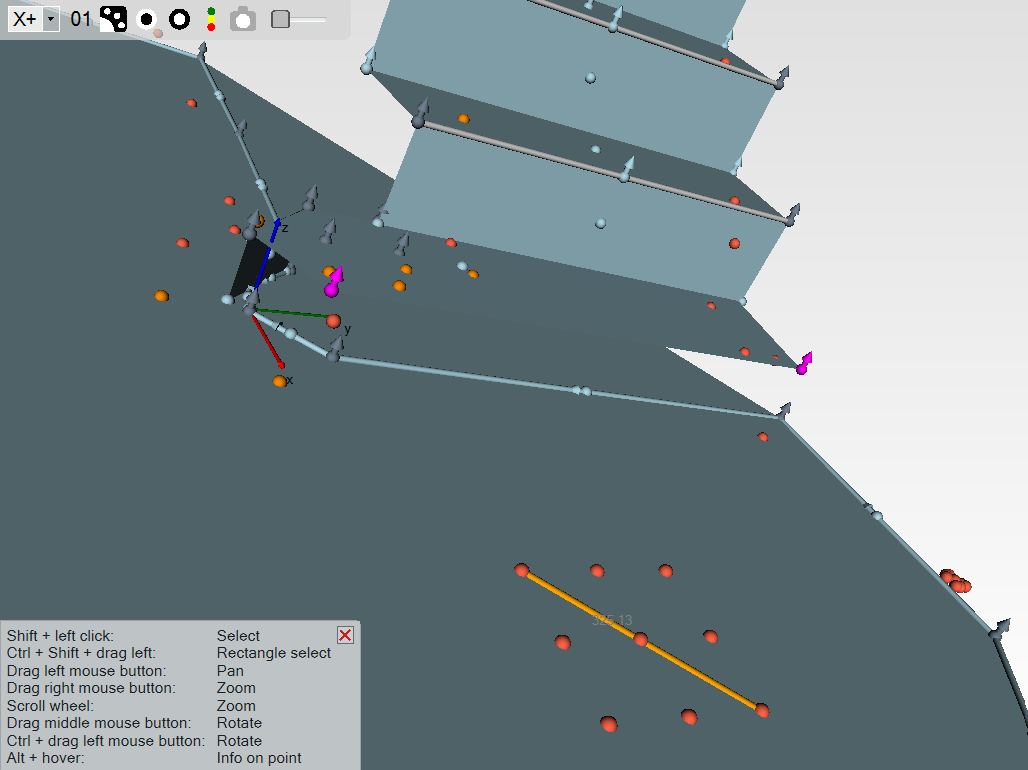
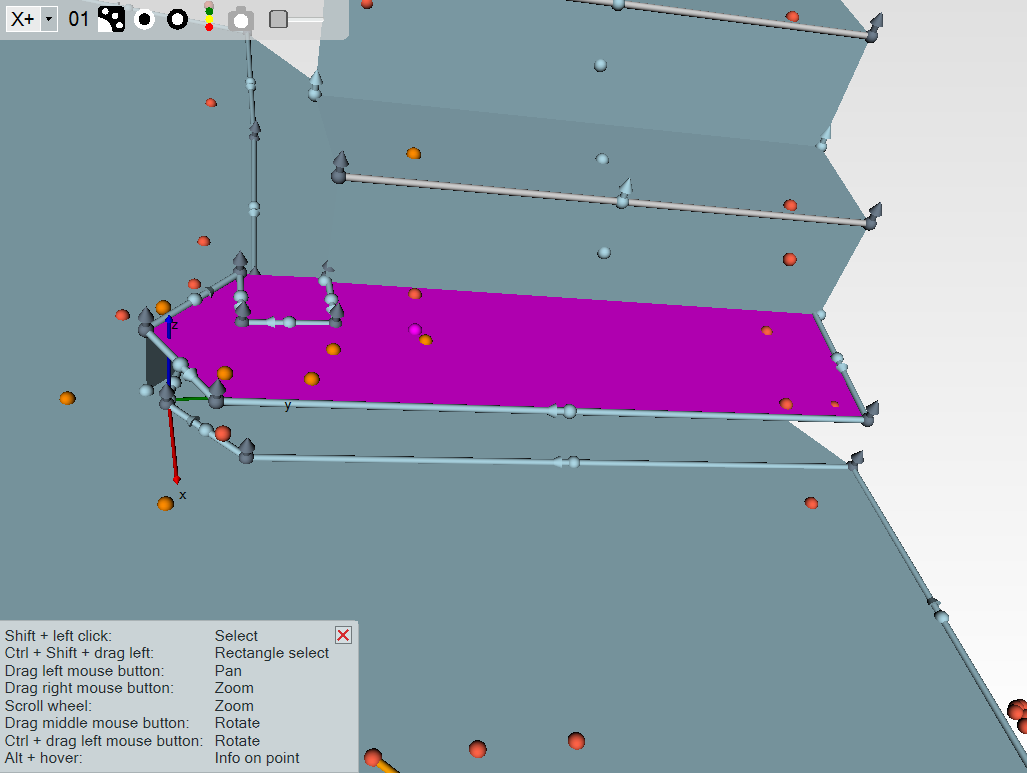
Delete any existing contour by selecting and deleting the distances underlying the contour in the geometry window.
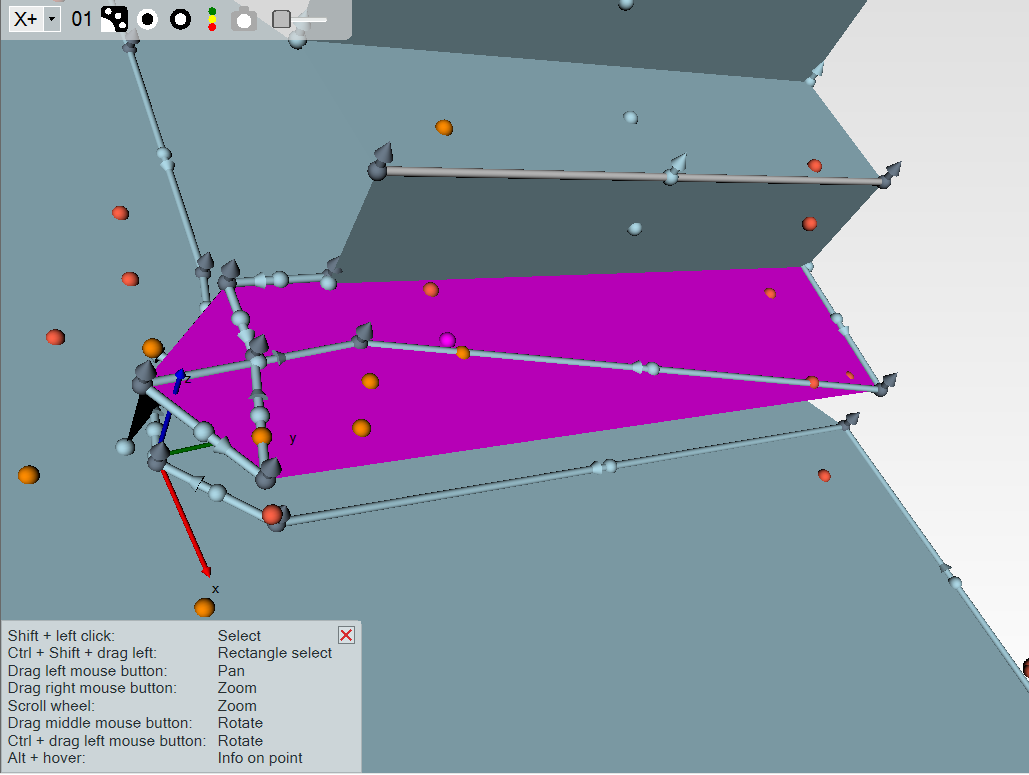
Now create your own distances so that they form the desired contour. Note: The distances must be in the same temporal and spatial order, i.e., one distance
must be connected to the next. You can only use points for the contour that
belong to the same plane. To create a distance, select two points and click "Create Distance" in the "Analysis" menu. Finally, click "Update Contour" to automatically name the distances.
This could, for example, be an accidentally left-over marker that interferes with the stair calculation. To do this, select all points in the 3D view using CTRL-I and deselect interfering points using Shift-click. Then recalculate the project using "Recalculate" in the "Acquire" menu.
We will advise you on the equipment that suits your projects — and send you a demo kit on request.

 Deutsch